User Manual Post Operations
- Dashboard
- Customers
- Providers
- Scheduling
- Accounting
- Post Operations
- Organization

Add Provider's Feedback
How to enter Provider feedback?
Step 1
Scroll to the Post Service Provider Feedback section.

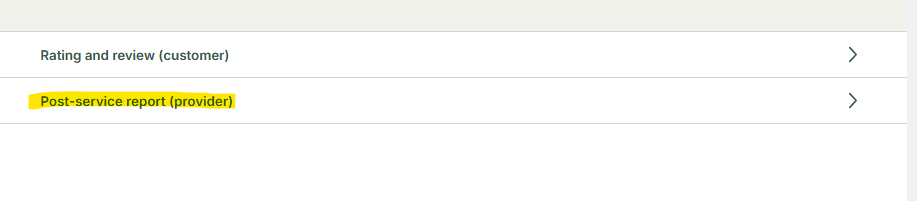
Step 2
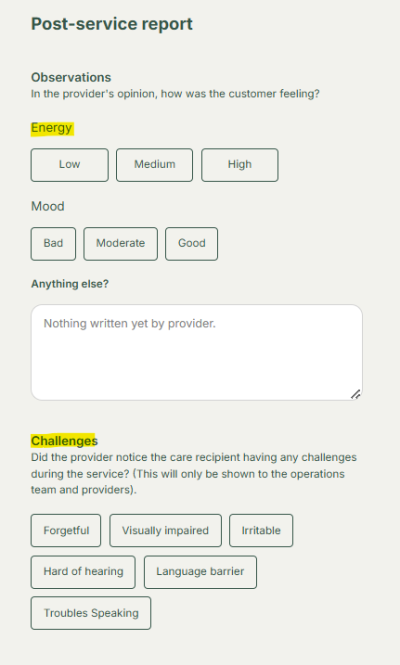
Pick the following options on capturing information on providers observations?
- Choose options among Energy and Mood Levels - such as Care Recipient’s Condition (e.g., mood, challenges faced).
- Add required information for provider
- Also choose suitable options on any challenges encountered during the service
Step 3
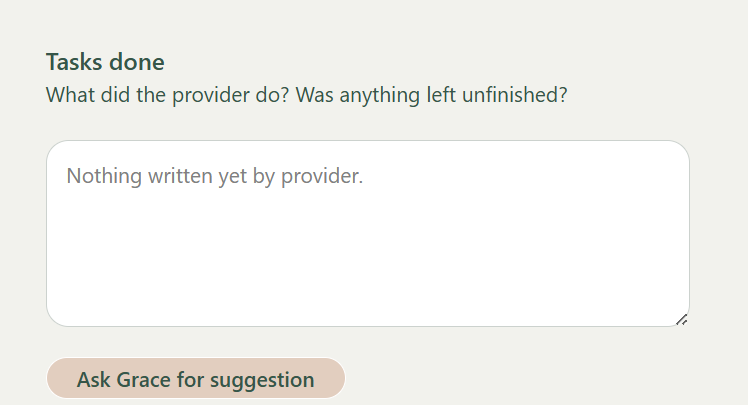
Fill the required information on the Tasks done
- Tasks Completed (list of actions performed).
Note: Use "Ask Grace for Suggestion" (AI assistance) to help craft messages.
Step 4
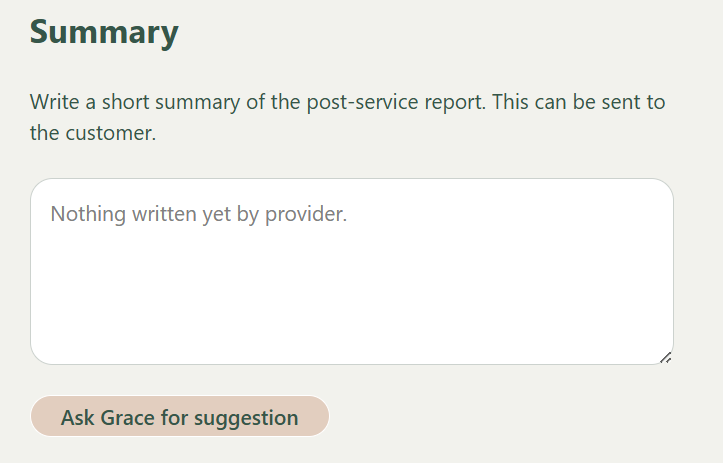
Complete a short summary to capture experience on the post service report
- Provider Notes (summary of the appointment)
Note: Use "Ask Grace for Suggestion" (AI assistance) to help craft messages.
Step 5
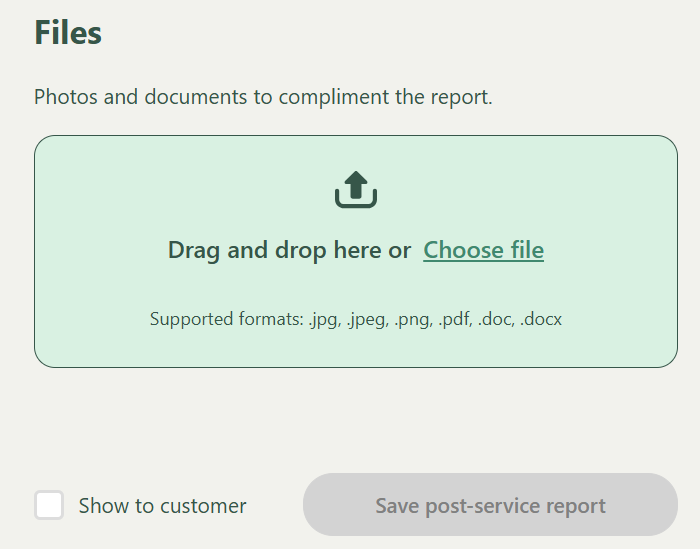
Upload any relevant documentation if required to support the report
- Files (if there are any photos or documents it can be uploaded in the relevant formats)
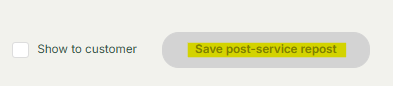
- If the customer’s family wants access, enable option to Show to customer
Step 6
Click Save Post Service Report to save the details.