User Manual Customers
- Dashboard
- Customers
- Providers
- Scheduling
- Accounting
- Post Operations
- Organization

Manage Customer Details
How to view Customer's Profile
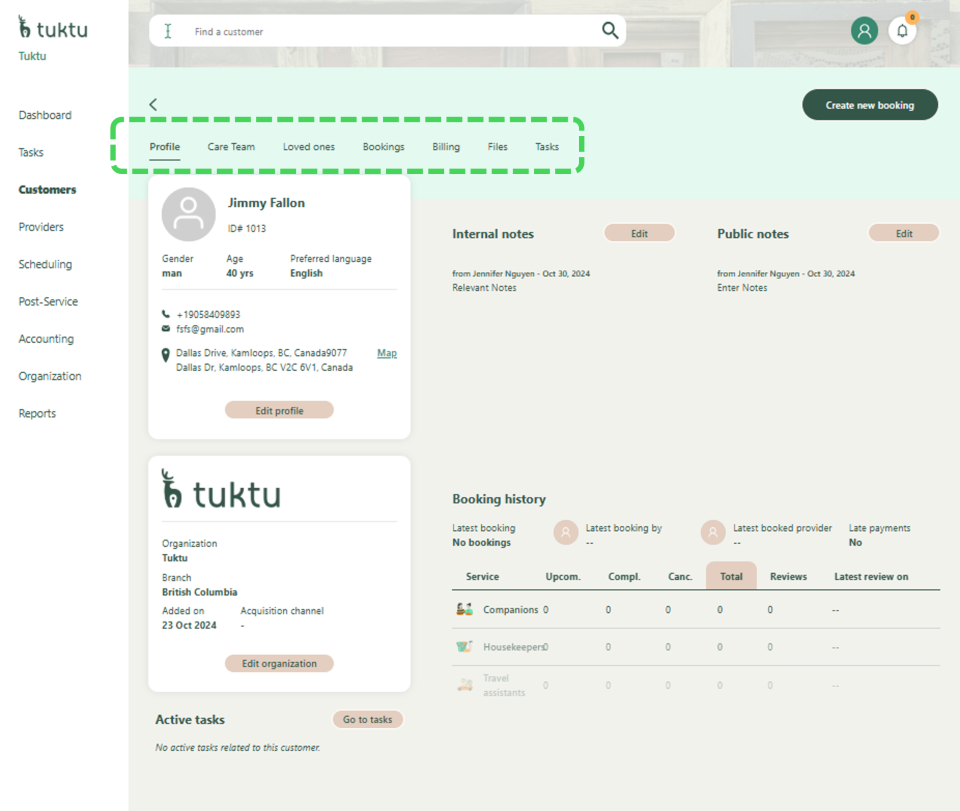
In the Customer Module, you can search for and view customer profiles. You can edit their profile, manage their care team, bookings, billing, and tasks, and add or remove related files.
In the Customer Module, you can view all customer profiles and search for a customer using details like name or phone number.
By selecting a customer, you can view and edit their profile, manage their care team, loved ones, bookings, billing summary, and tasks, and add or remove files related to the customer.
How to Edit Customer's Information
You can edit customer details by clicking 'Edit' beside the profile, updating Personal and Contact Info, and using the pen icon to modify or add addresses. You can also select applicable languages if the customer is bilingual. Once done, close the window to save your changes.
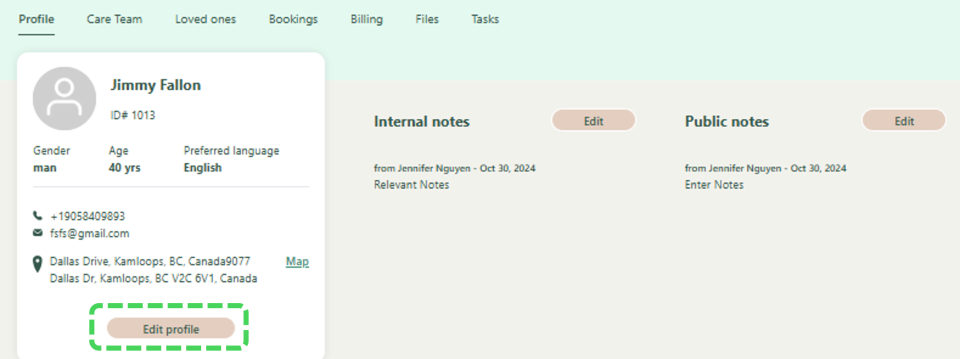
Once the customer profile loads, Click Edit profile below the customer details, a window will slide out and you can now edit Customer details.
For Personal Info and Contact Info, simply click Update after editing each section.
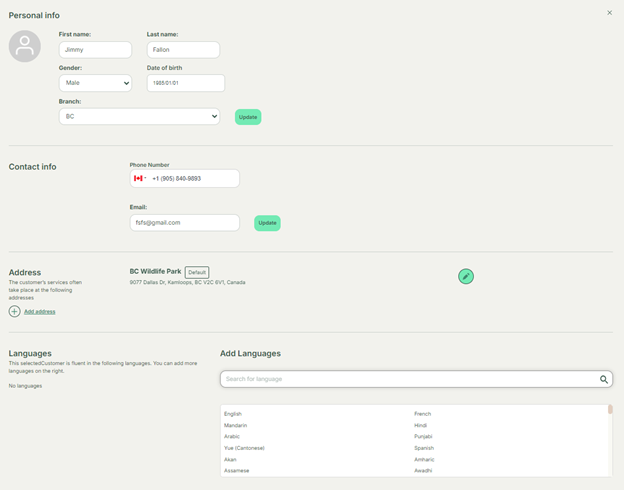
In order to edit the address, click the pen icon on the right under the address heading. You can also Add address if the customer has multiple points of care.

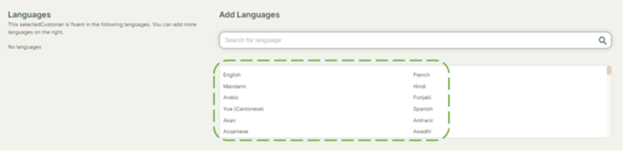
You can also click from a list of languages if the customer is bilingual, simply click all the languages apply. Once clicked, they would appear on the left hand side.
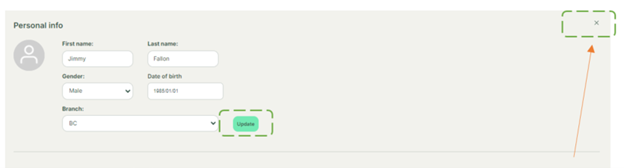
Once changes are complete, simply click the x on the top right hand side of the window that appeared.
How to Edit Customer's Internal Notes
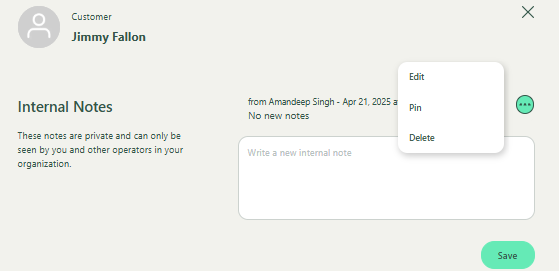
To edit a customer's Internal Notes, click Edit. Make the necessary changes and click Save. A sliding window will appear where you can enter relevant information and click Save. To delete a note, click Delete, and to exit the window, click the X button. Notes are sorted from newest to oldest. You can also edit, pin, or delete a note by clicking the three-dot button beside it.
Once the customer profile loads, Click the Edit button next to add Internal Notes related to the customer. ** Please note, Internal notes are intended for internal communications of communications that you don’t wish to share with the client/ customer/ provider.

A window will slide out similar to below, Enter related internal notes and click Save.
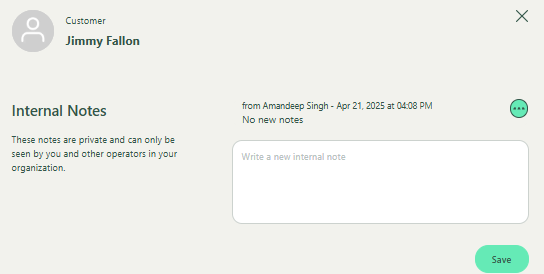
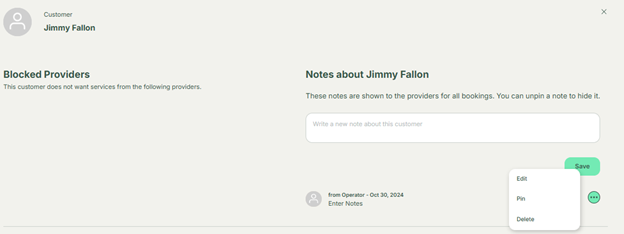
You will see the internal note above the text box once you click save. You can also edit Internal Notes by clicking the green button with three dots. And Click Edit. If you wish to delete a note click delete. Click Pin to pin a specific note to the top. Please note, notes will be sorted from most recent note. To exit the window, click the X button on the top right-hand side highlighted below with an arrow.
How to Edit Customer's Public Notes
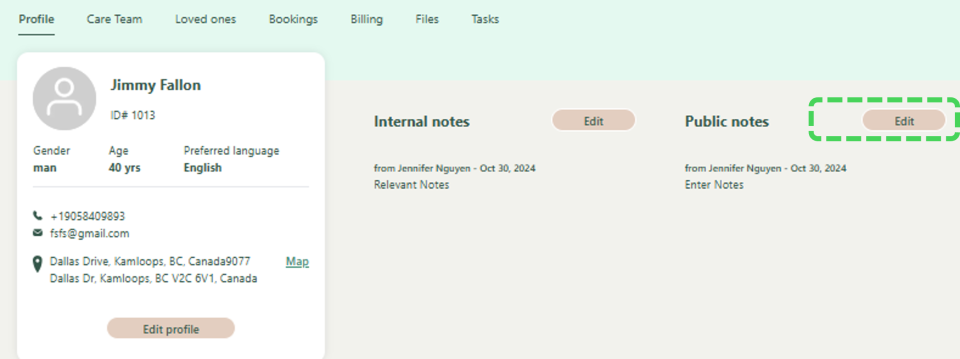
To edit a customer's Public Notes, click Edit beside Public Notes to add notes visible to both customers and providers. A sliding window will appear where you can enter relevant information and click Save. You can also edit, pin, or delete a note by clicking the three-dot button beside it. Notes can be shared with specific providers as well as customers. To exit the window, click the X button.
Please note, notes made in this sections are visible to the customers and providers. Click the Edit button to add Notes that can be shared with Specific Providers as well as Customers. A window will slide out.
You can now add relevant notes that you want providers to see related to the customer. In the text box you can enter notes. Simply click Save to add note to customer.
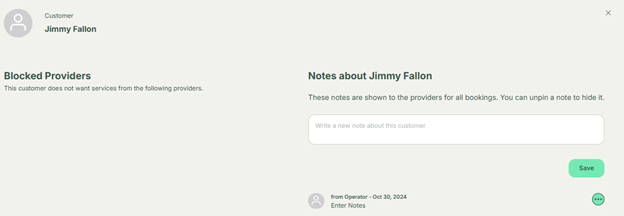
You can also edit, pin or delete a note. Simply click the three dots beside the note you wish to edit, pin or delete. To exit the window, click the X button on the top right hand side highlighted below with an arrow